
Sign in with Google
Use your Google account to sign up and log in without a Murudo password, and add a password later if you want one.
- Android app
- Murudo Web
Tap Continue with Google and choose your Google account. There is no Murudo password to remember and no email code to type, because Google confirms your email address for you.
Sign in
- Open Murudo and tap Sign in. If you are new, tap Create account.
Tap Continue with Google.
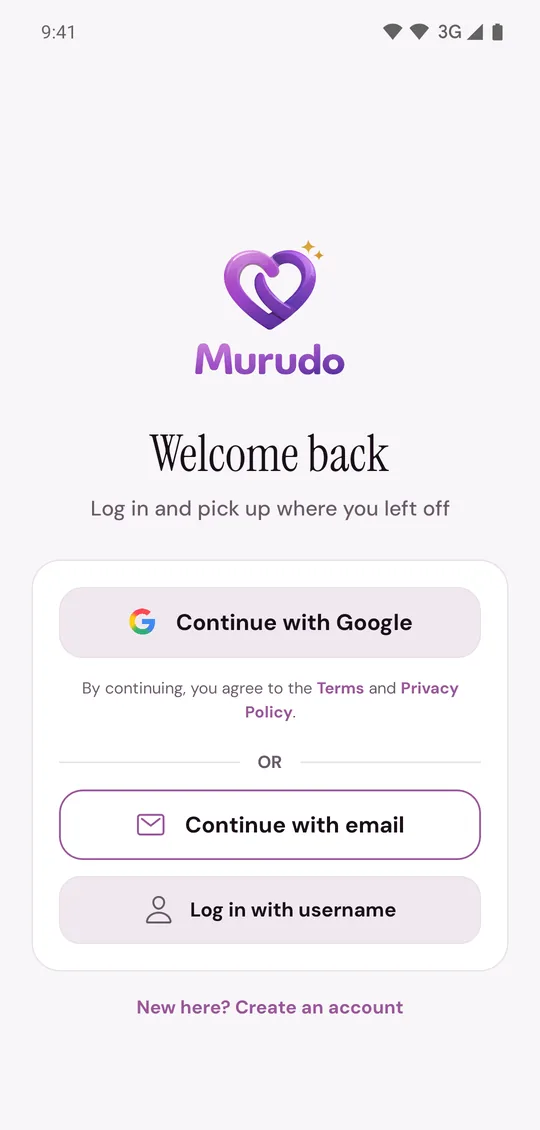
- Choose the Google account you use for Murudo.
On Murudo Web, use the Google button at the top of the log-in screen.
If no Murudo account uses that Google address yet, a new account is created and you go to profile set-up. So choose the same Google account every time.
Things to know
- Same email, same account. If you signed up with an email and password and later tap Continue with Google with the same address, you arrive in the same account, and Google becomes a second way in. If that email had never been verified, your old password stops working and you log in with Google from then on.
- Wrong Google account. If the app asks What's your first name? instead of opening your profile, you chose a different Google account. Tap Log out and choose the right one.
- Continue with email says Incorrect email or password. A Google account has no Murudo password until you add one.
- Your email cannot be changed. A Google address counts as verified, and a verified email cannot be changed.
Add a password to a Google account
A password lets you log in with Continue with email as well as with Google.
- Open the Profile tab and tap Settings, then Account and security.
- Tap Add password.
- Tap Send verification code. The code goes to your Google email address.
- Type the 6-digit code and tap Verify code.
- Type a password that meets the five password rules in both fields and tap Set password.
- Tap Back to security.
Google sign-in still works afterwards. Adding a password logs out your other phones and browsers, and the phone you are using stays logged in. Done in the Android app, it also removes a passkey saved on Murudo Web. You can save a new one there.
On Murudo Web, open Settings, then Account, tap Add Password and follow the same steps. A saved passkey is kept unless you tick Also remove the passkey saved on this account.
Keep your Google account safe
Anyone who can open your Google account can open your Murudo account. Use a strong Google password and turn on Google's 2-Step Verification.
Updated 13 October 2026