
Delete your Murudo account
How to delete your account in the app or on Murudo Web, and what is removed the moment you confirm.
- Android app
- Murudo Web
You can delete your account yourself at any time. It happens the moment you confirm and it cannot be undone, so read the list below first. If you only want a break, pause your account instead: you stay hidden and keep your matches.
What deleting removes
- Your profile, photos and prompts.
- Your matches and every chat, for you and for the people you matched with.
- Your likes, and the likes other people sent you.
- Murudo Premium, including a Forever plan, any boosts you have not used and any Murudo Wallet balance. None of it can be moved to another account.
Removing the app from your phone does not delete your account. Your profile stays visible until you delete it or pause it.
Delete your account in the Android app
- Open the Profile tab and tap Settings.
Tap Account and security.
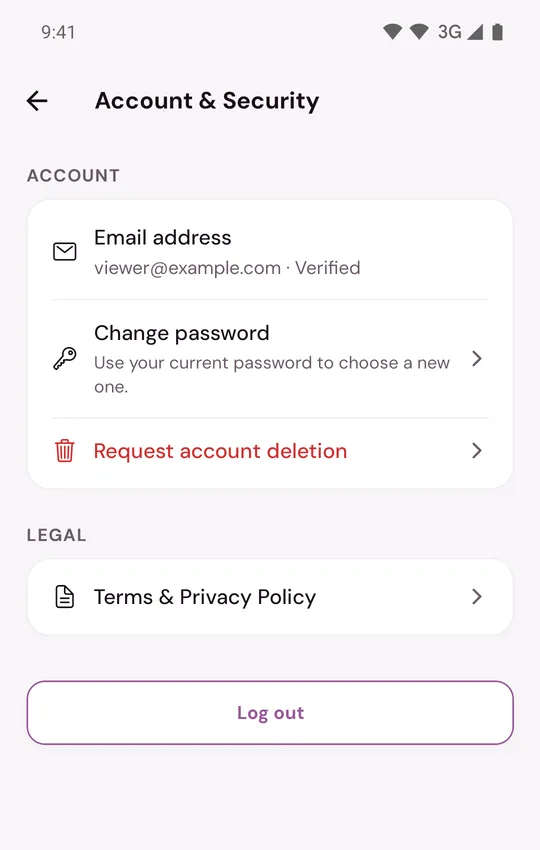
- Tap Request account deletion.
Read the warning. If you like, choose a reason under Why are you leaving? (optional) and add a note. If you choose I met someone, Murudo also shows links to Murudo Weddings and Cozy Apart.
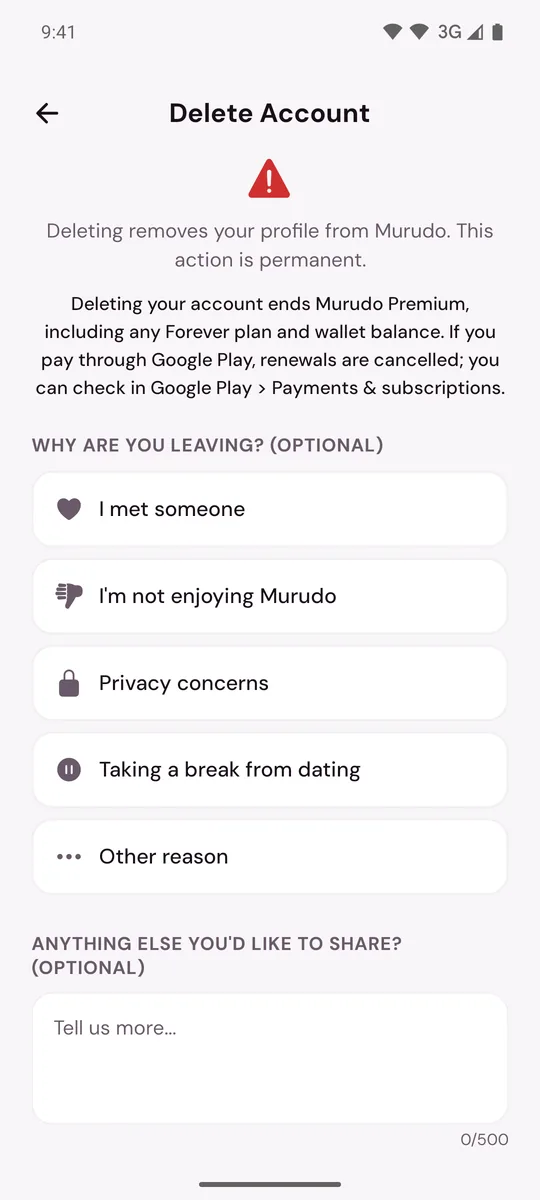
- Tap Delete My Account, then tap Delete My Account again to confirm.
You will see Account Deleted and be signed out on every device.
Delete your account on Murudo Web
- Open the Profile tab and go to Settings.
- Tap Account, then Delete Account.
- Choose a reason if you like, tap Delete My Account and confirm. Choosing I found someone also shows links to Murudo Weddings and Cozy Apart.
If you pay through Google Play
Deleting your account cancels the renewal of a pass bought through Google Play. To be sure, open Google Play, tap your picture, then Payments & subscriptions, and check that Murudo is no longer listed as renewing.
If you cannot get into your account
Email support@foretellhq.com from the email address on your Murudo account and ask for it to be deleted. For a username account with no email, say your username and the recovery contact you saved.
Updated 17 October 2026