
Change or add an email address
You can change an email only before it is verified, and add one to a username account. A verified email cannot be changed in the app.
- Android app
- Murudo Web
You can change your email only while it is still unverified. Once an email is verified, it cannot be changed in the app or on Murudo Web. A username account with no email can add one at any time.
See which email is on your account
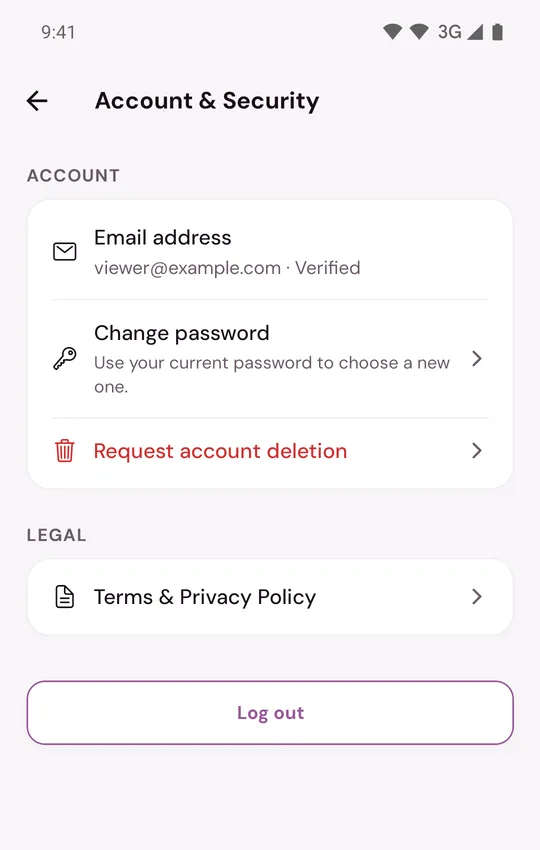
Open the Profile tab, tap Settings, then Account and security. The Email address row shows the address followed by Verified or Not verified, or it says No email added.
Change an email that is not verified yet
On the Verify your email screen, straight after sign-up:
- Tap Change email next to Wrong email?
- Type the right address under New email and tap Send code.
- Enter the 6-digit code sent to the new address and tap Verify.
If you are already inside Murudo, for example because you got in with a selfie check:
- Open Settings, then Account and security, and tap Verify email.
- Correct the address under Email and tap Send code.
- Type the code under Code and tap Verify email.
The new address cannot be one that another Murudo account already uses. If you change it several times within an hour, Murudo asks you to wait.
Add an email to a username account
- Open Settings, then Account and security, and tap Add email.
- Type your address under Email and tap Send code.
- Type the code under Code and tap Verify email.
A verified email cannot be changed
There is no screen for it, and the Verify email row disappears once your address is verified. If you can no longer open that mailbox:
- You can still log in. Logging in needs your password or Google, not the mailbox.
- Make sure you know your password, because a reset code would go to the old address.
- Email support@foretellhq.com and explain. Give the email on your account and the address you can use now. Support will tell you what is possible.
On Murudo Web
Open Profile, Settings, then Account. The Verify email or Add email row is there while your address is unverified, and it works the same way.
Updated 13 October 2026