
Change your password
Change your Murudo password in Settings, the five rules every password must meet, and how to add a password to a Google account.
- Android app
- Murudo Web
Change your password in Settings, under Account and security. You need your current password. If you have forgotten it, reset it instead.
Password rules
A password must have all five of these:
- at least 8 characters
- an uppercase letter
- a lowercase letter
- a number
- a special character, such as # or @
The Change Password screen in the app ticks off each one as you type. If a password is refused, Murudo tells you what is missing.
Change your password in the Android app
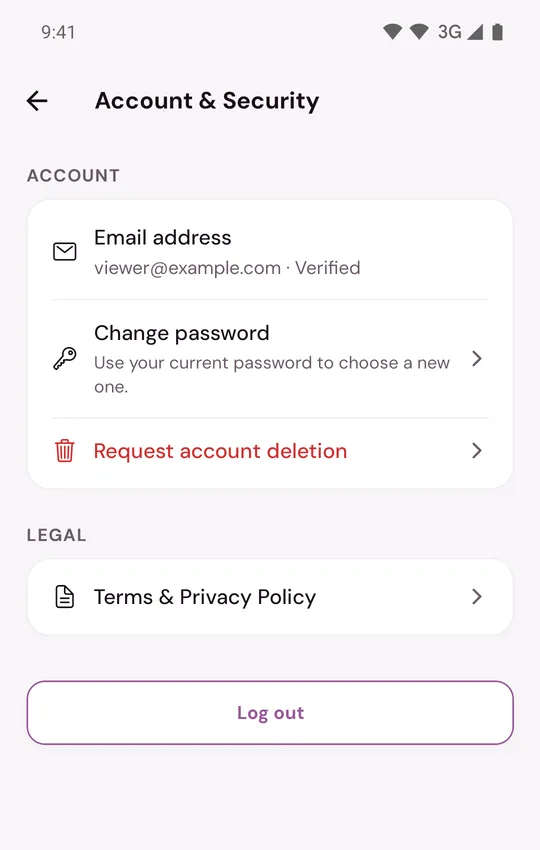
- Open the Profile tab and tap Settings.
Tap Account and security, then Change password.
- Enter your password under Current Password.
Type the new one under New Password and again under Confirm New Password.
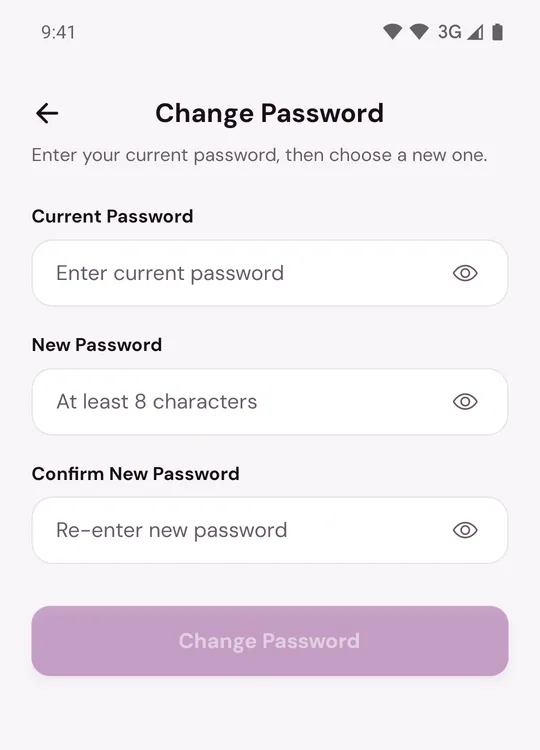
- Tap Change Password. You will see Your password has been changed.
The new password must be different from the old one. The phone you are using stays logged in. Every other phone and browser is logged out and has to log in with the new password.
A passkey saved on Murudo Web keeps working after you change your password. If you did not save it yourself, remove it on Murudo Web.
On Murudo Web
- Open the Profile tab and tap Settings, then Account.
- Tap Change Password.
- Fill in the three fields.
- If your account has a passkey, you also see Also remove the passkey saved on this account. Leave the box empty to keep your passkey. Tick it if someone else may have saved it.
- Tap Update Password.
If you signed up with Google
A Google account has no Murudo password at first, so the row says Add password instead. Tap it, tap Send verification code, enter the 6-digit code from your email, then choose a password and tap Set password. Google sign-in keeps working afterwards. On Murudo Web, a saved passkey is kept unless you tick Also remove the passkey saved on this account. In the Android app, adding a password removes a passkey saved on Murudo Web, and you can save a new one there. The full steps are in Sign in with Google.
If Murudo says your current password is incorrect
Check for a typing mistake and tap the eye icon to see what you typed. If you still cannot get it right, you need a reset, which starts from the log-in screen:
- Email accounts: first check that you can open the mailbox shown under Email address. Then log out, tap Continue with email and Forgot password?
- Username accounts: have your recovery contact and recovery phrase ready. Then log out, tap Log in with username and Recover with selfie.
Updated 13 October 2026