
Reset a forgotten password
Get a 6-digit code by email and choose a new password. For accounts with an email; username accounts recover with a selfie.
- Android app
- Murudo Web
If your account has an email address, Murudo emails you a 6-digit code and you choose a new password. The code works for 15 minutes. If you signed up with a username and no email, recover your account with a selfie instead.
Reset your password in the Android app
- Tap Sign in, then Continue with email.
- Tap Forgot password?
Enter the email on your Murudo account and tap Send verification code.
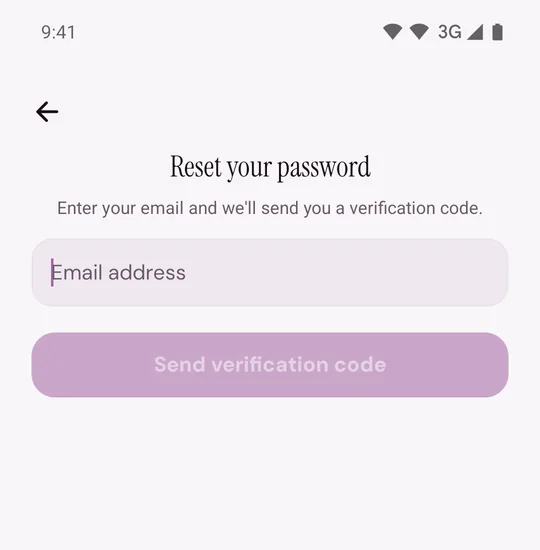
- Open the email from Murudo Accounts. Its subject starts with the code. Enter the 6 digits and tap Verify code.
- Type a new password in both fields and tap Reset password. The checklist under the first field shows the five password rules.
- Tap Back to login and log in with the new password.
Resetting your password logs you out on every other phone and browser. It also removes a passkey saved on your account. You can save a new one on Murudo Web.
On Murudo Web
- On the log-in screen tap Continue with email, then Forgot password?
- Enter your email and tap Send Reset Code.
- Enter the code under Reset Code and tap Verify Code.
- Type your new password and tap Reset Password.
If the code does not work or does not come
- Invalid or expired code: a code lasts 15 minutes and only the newest one works. Go back, send a new code and use that one.
- Too many invalid attempts. Try again later.: after five wrong codes, Murudo stops accepting reset codes for that email for 15 minutes. Asking for a new code does not shorten the wait.
- No email at all: look in your spam folder and check that you typed the email your account uses. For your privacy, Murudo shows the code screen even when no account has that email. More help is in The email code is not arriving.
- You signed up with Google: you do not need a password. Tap Continue with Google.
Updated 13 October 2026