
Pay with EcoCash
Buy a Plus or Gold pass with EcoCash in the Android app downloaded from murudo.co or on Murudo Web, step by step.
- App from murudo.co
- Murudo Web
You can pay with EcoCash in the Android app downloaded from murudo.co and on Murudo Web. You type your EcoCash number, a prompt appears on that phone, and you enter your PIN there. The app installed from Google Play pays through Google Play instead: see Why do I not see EcoCash as a payment option?
Before you start
- You need an Econet number with EcoCash. For a NetOne number, choose OneMoney instead.
- Have enough balance for the pass.
- Keep the phone with that SIM next to you, switched on and unlocked. The prompt only lasts about a minute.
Pay in the Android app
- Open Profile and tap See Plans.
- Under Choose your tier, tap Plus or Gold.
- Under Choose your pass, tap the 24-hour, 7-day or 30-day pass.
- Tap the button that starts with Get Plus or Get Gold. It names the pass and its price.
On Buy Pass, under Payment method, tap EcoCash.
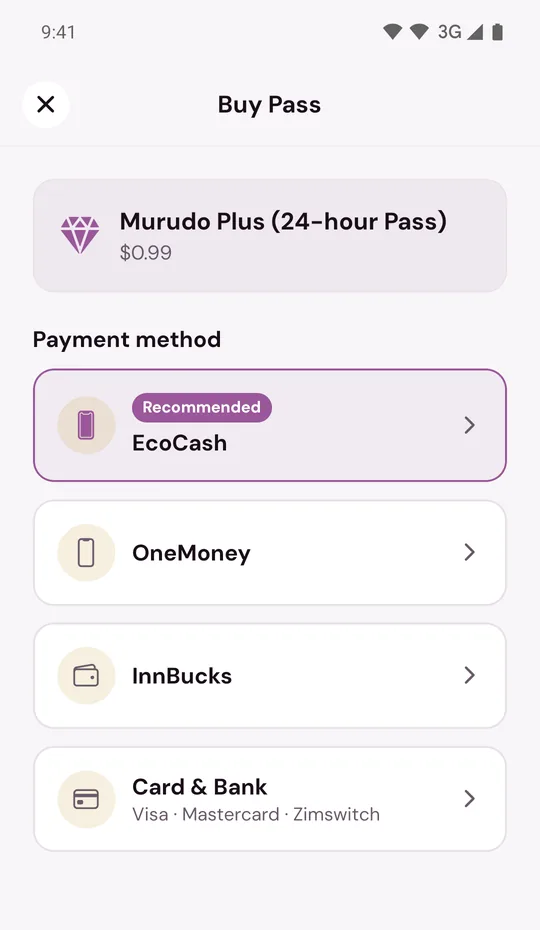
Under Phone number, type your EcoCash number, for example
0771234567. Tap Send USSD prompt.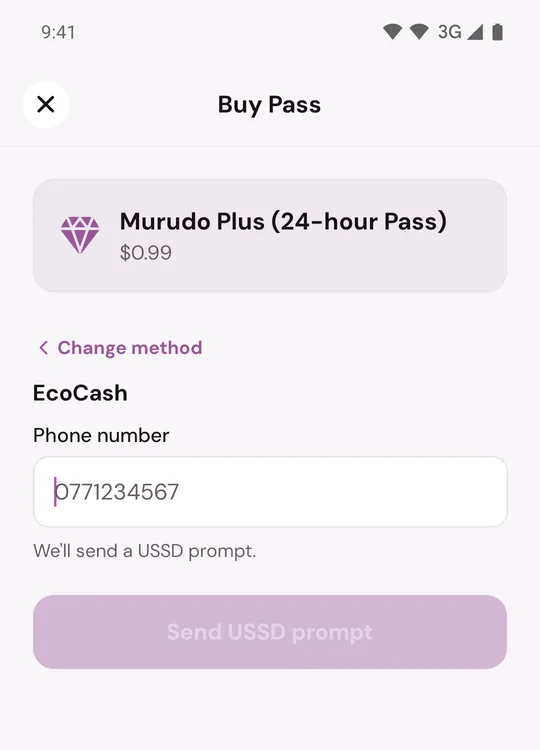
- The screen changes to Check phone. When the prompt appears on your phone, enter your EcoCash PIN.
- Stay on the screen. When the payment is confirmed you see Payment Successful and your pass is active. Tap Done.
Pay on Murudo Web
- Open Profile and tap See Plans.
- Under Murudo Plus or Murudo Gold, tap the price of the pass you want: 24 hours, 7 days or 30 days.
- In the Buy Pass box, tap EcoCash.
- Type your number under EcoCash Phone Number and tap Send USSD prompt.
- Enter your PIN in the prompt on your phone. The box tells you when the payment is confirmed. Tap Done.
While you wait
- Cancel in the app, or closing the box on Murudo Web, only closes the payment screen. It does not cancel a prompt that is already on your phone. If you enter your PIN on that prompt, you still pay, and Murudo keeps checking for the payment so that your pass can be switched on.
- If you see Checking your payment, do not start another payment. See What "Checking your payment" means.
- If the prompt never arrives or the payment is refused, see My payment is not going through.
After you pay
Your pass starts when the payment is confirmed and ends on its end date. It does not renew, and Murudo does not take another payment when it ends. To check the date, see See your plan and when it ends.
The number does not have to be your own. See Can I pay for someone else?
Updated 13 October 2026