
Edit your profile
Where to change your photos, prompts, name, bio and other details in the app and on Murudo Web, and which changes have limits.
- Android app
- Murudo Web
You change your profile from the Profile tab, under Edit Profile. In the Android app most changes save by themselves. On Murudo Web you tap Save.
Open Edit Profile in the Android app
- Open the Profile tab.
Tap Edit Profile. Tapping your photo at the top does the same.
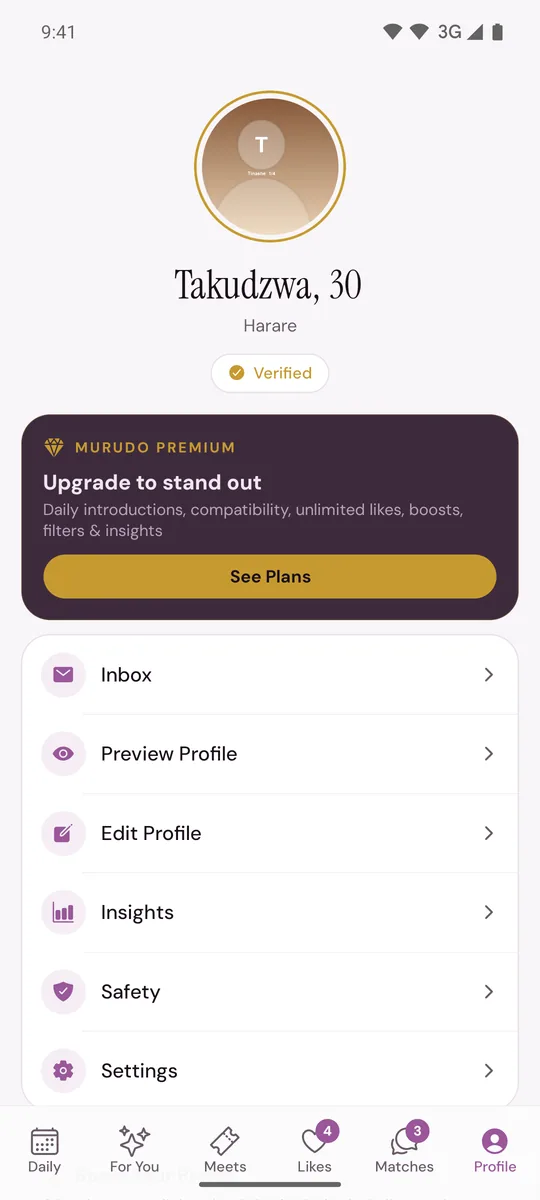
Tap the row you want to change.
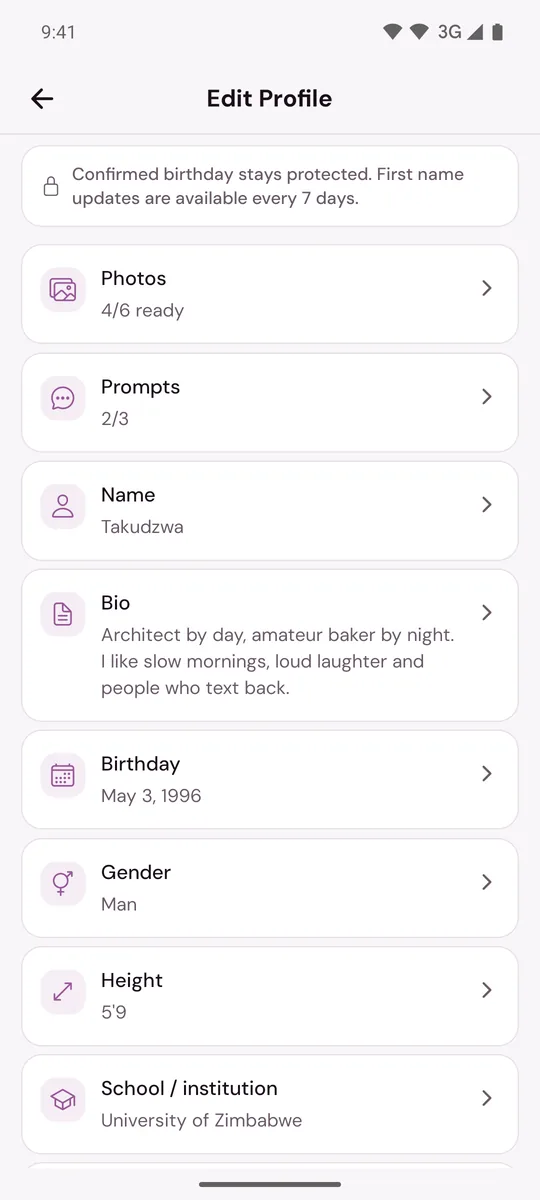
What each row changes
- Photos: add, replace or remove photos and choose your main photo. Up to 6. See Add, replace or reorder your photos.
- Prompts: up to 3 questions with your answers. See Add or change your prompts.
- Song: one song from your phone. The minute you choose plays on your profile once our team has listened to it. See Add a song to your profile.
- Name: your first name, once every 7 days. See Change your first name.
- Bio: a few lines about you. See Write your bio and choose interests.
- Birthday: one correction only. See Fix your birthday or age.
- Gender: see Change your gender or who you want to date.
- Height: type it in centimetres, from 120 to 220, and tap Save height. To choose how heights are displayed, see Show height in metres or feet.
- School / institution: optional. Pick from the list or type your own, and add a Year / level if you like. Clear institution removes it.
- Looking for: the kind of relationship you want. One choice.
- Interests: 3 to 8.
- Relationship type, Ethnicity, Children, Family plans, Religion and Drinking: one choice each. You can hide any of these: see Choose which answers show on your profile.
A row marked Required is missing something your profile needs before it can be shown. See Why is my profile not being shown?.
How changes are saved
In the app most rows have no Save button: a change is saved a moment after you make it. First name, birthday and height have their own save button, and gender asks you to confirm.
If a change cannot be saved, a notice at the top of Edit Profile starts with Not saved yet and gives the reason, for example fewer than 3 interests or a phone number in your bio.
What is not in Edit Profile
- Who you want to date, your age range and distance: see Set your distance, age range and who you want to date.
- Your city. It comes from your phone: see How your location and city work.
- Your username and email: see Can I change my username or phone number?.
On Murudo Web
- Open the Profile tab and tap Edit Profile.
- Tap Photos, About You, Lifestyle, Interests or Prompts.
- Make your changes, then tap Save at the top. You see Profile saved.
Photos and gender are saved straight away. Everything else is saved only when you tap Save.
Updated 21 October 2026