
Why can I not remove my last photo?
A profile that has been shown to others must keep one usable photo, so the last one can only be replaced. How to replace it or hide your profile.
- Android app
- Murudo Web
Once your profile has been shown to other people, it must always keep at least one usable photo. The last one can be replaced but not removed. If you want to hide your profile, pause your account instead: pausing keeps your photos.
What you see
When you tap your last usable photo in Edit Profile, Photos, the menu has Replace photo but no Remove photo. Under it you read: Your profile needs at least one photo, so this one can only be replaced. To hide your profile, pause it instead.
A usable photo is one that has passed the photo check, which means your face can be seen in it. If you have other photos that are still being checked or are waiting for review, they do not count yet, so your one good photo stays locked until another passes.
Swap it for a different photo
- Open the Profile tab and tap Edit Profile, then Photos.
- Tap the photo, then tap Replace photo.
- Choose the new photo and tap Done, then Use.
Your current photo stays on your profile until the new one has passed the photo check.
You can also add a second photo first. When it has passed the check, Remove photo comes back for the old one.
Hide your profile instead
- Open the Profile tab and tap Settings.
- Tap Privacy and security.
Under Pause account, choose 1 Week, 2 Weeks, 1 Month or 3 Months.
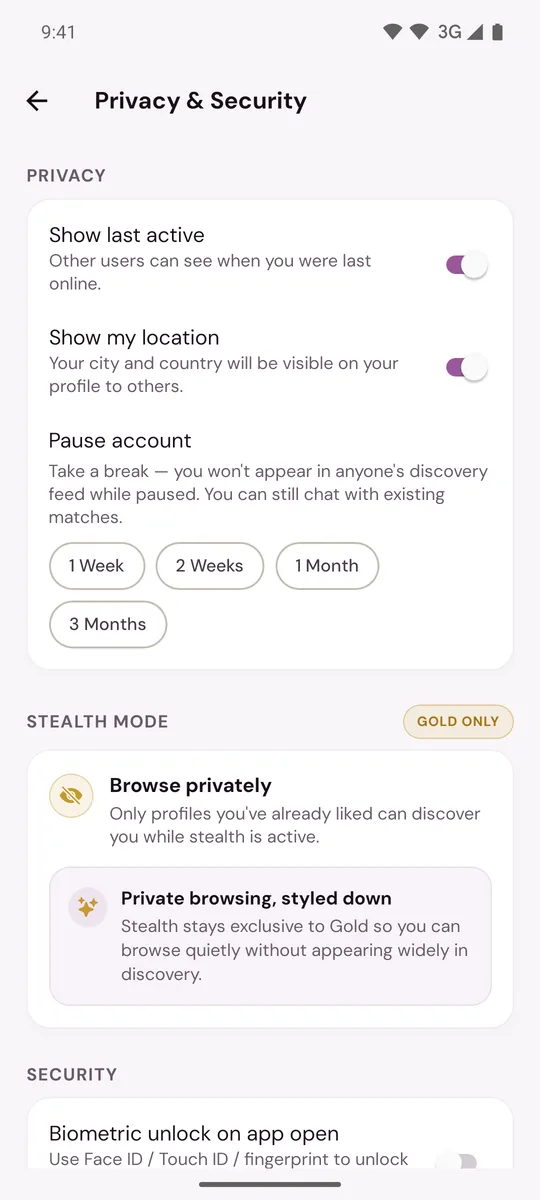
While paused you are not shown to new people, and you can still chat with your matches. The Pause profile link in the photo menu takes you to the same screen. See Pause your account to take a break.
If you want to leave Murudo altogether, see Delete your Murudo account. Deleting removes your photos with everything else.
On Murudo Web
The rule is the same. Tap the photo in Edit Profile, Photos and choose Replace photo, or Pause profile to open the Privacy settings.
Updated 13 October 2026