
I lost my verified badge
Why the Verified badge can disappear from your profile, and how to get it back by adding a clear photo of yourself and taking the selfie again.
- Android app
- Murudo Web
The badge is removed when our team removes one of your profile photos. To get it back, make sure every photo on your profile is a clear photo of you, then tap Not verified on the Profile tab and take the selfie again. It is free.
Why the badge was removed
- Our team removed one of your photos. The badge says that your selfie matched the photos on your profile. When a person at Murudo removes one of those photos, the badge goes with it. You are told about the photo, but that notice does not mention the badge. See Why was my photo removed?
- Our team removed the badge after a review. This is less common, and no separate notice is sent.
What does not remove it
- Adding a photo, replacing a photo or changing which photo is first.
- A new photo that the automatic check refuses when you upload it. The photos already on your profile have not changed, so the badge stays.
- A new photo that seems to show a different face. It is held for a person at Murudo to look at before it appears, and your badge stays while it waits. If the team decides the photo is not you and removes it, the badge can be removed with it.
Check what the app says
Open the Profile tab and read the line under your name.
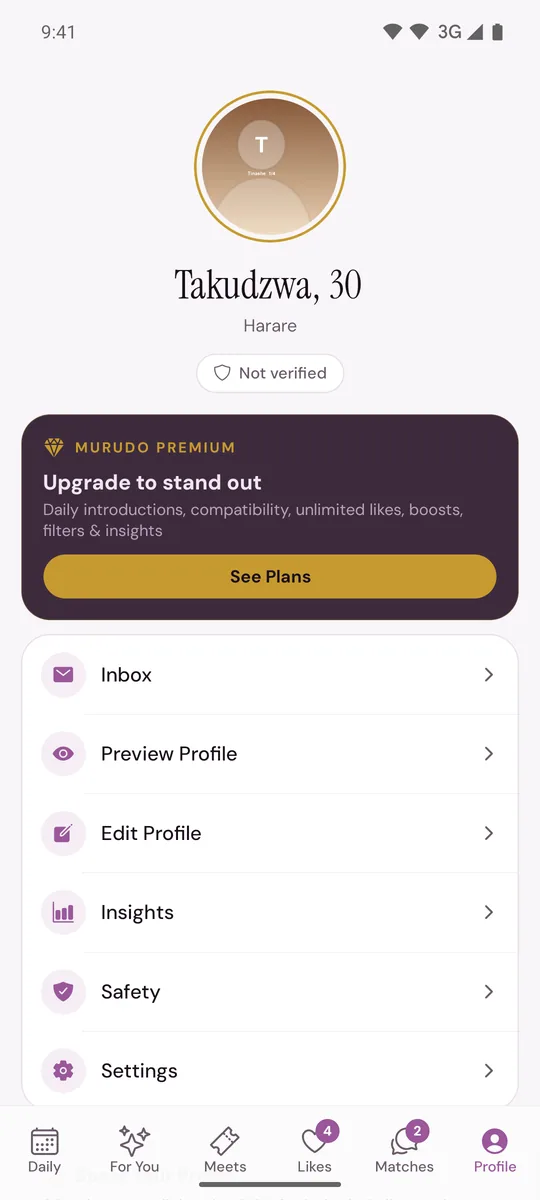
- Not verified: the badge is gone and you can verify again.
- Verification pending: a person at Murudo is reviewing your selfie. See My verification is pending or did not work.
- Checking verification...: the app is still loading. Wait a moment.
Not verified beside your email address in Account and security is about your email, not this badge.
Get the badge back
Open Profile, tap Edit Profile, then Photos. If a photo was removed, add a clear photo of yourself in its place. Three or more photos that show your face clearly help the automatic check.
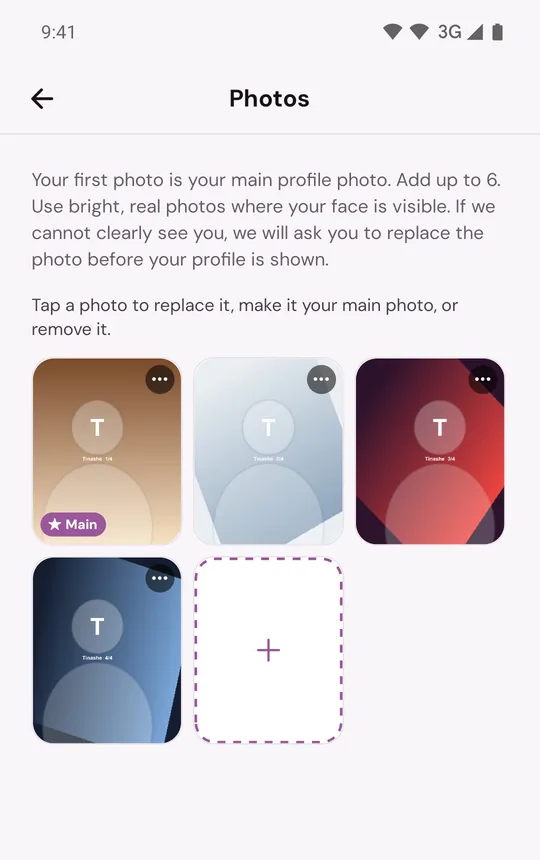
Go back to the Profile tab and tap Not verified under your name.
- Tap I agree to face verification and take the selfie.
- You see You're Verified, or Pending Verification if a person at Murudo needs to look at it.
The full steps and tips are in Get the verified badge.
On Murudo Web
The Profile tab shows Not verified yet. Add a clear photo under Edit Profile, Photos if one was removed, then tap Verify Identity, Take Selfie and Capture.
If you think it was a mistake
Contact support from Profile, Inbox, Contact Murudo, or email support@foretellhq.com. Say your username or email and which photo was removed.
Updated 13 October 2026