
Why was my photo removed?
The reasons a profile photo is removed, what the notice means for your profile, and how to put a clear photo in its place.
- Android app
- Murudo Web
A profile photo is removed when we cannot clearly see your face in it, or when it is not a real photo of you. The notice tells you which, and the fix is to upload a clear photo of yourself in its place.
What the notice says
You are told in the app, by notification, and by email if your account has an email address. If our team removed the photo, or it was removed because it is not a real photo of you, the notice is also saved in your Inbox on the Profile tab. The title gives the reason:
- Photo Removed, with a message that we could not clearly see your face.
- Photo removed: this isn't you: the photo appears to show someone other than you.
- Photo removed: not a genuine photo: it looks like a meme or a joke image.
- Photo removed: AI-generated image: it appears to be made by AI and is not a real photo of you.
- Photo removed, with a message that the photo does not meet our photo guidelines.
The full rules are in What photos are allowed.
If the notice says "Profile paused"
A notice that starts with Profile paused means you have no clear photo left. Your profile is hidden from other members until you have at least one clear photo of yourself. It is shown again once you add one that passes the photo check.
Add a clear photo in the Android app
- Open the Profile tab and tap Edit Profile. If the alert is still on screen, Review photos takes you to the Profile tab.
Tap Photos.
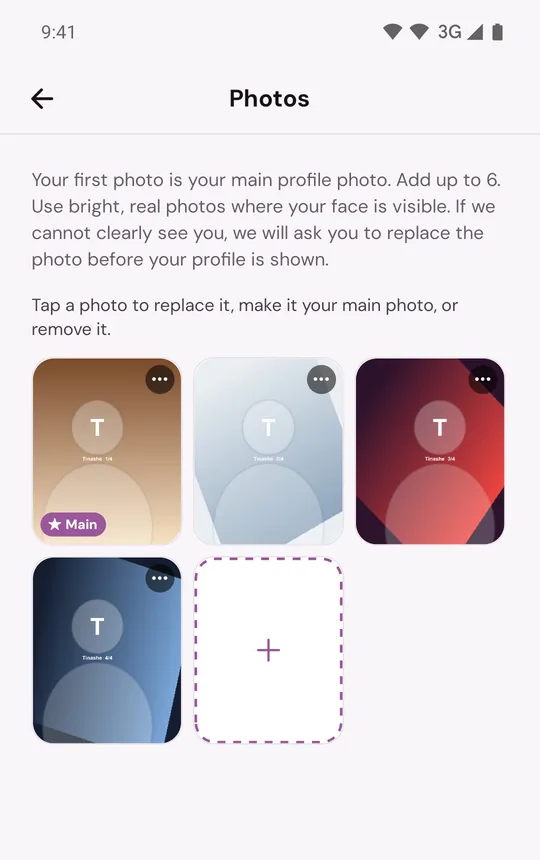
- Tap the empty tile with the plus sign and choose a photo.
- Pick a bright photo, facing the camera, where your face is easy to see.
A new photo is checked when you upload it. More steps are in Add, replace or reorder your photos.
On Murudo Web
Open the Profile tab, tap Edit Profile, then Photos, and tap an empty slot to add a photo.
If it happens again
Uploading pictures of other people, memes or AI-generated pictures again will result in your account being banned. See Other people's photos, memes and AI pictures.
If you think it was a mistake
There is no appeal button for a single photo. The quickest fix is to upload a clear replacement. If you believe the photo was removed in error, contact support: in the app, open Profile, Inbox, Contact Murudo, or email support@foretellhq.com. Say your username or email and which photo it was, and attach the photo if you can.
Updated 19 October 2026