
Appeal a suspension or ban
How to send an appeal from the Account Suspended or Account Banned screen, what to write, and how to see the answer.
- Android app
- Murudo Web
If you believe your suspension or ban was a mistake, send an appeal from the locked screen you see when you log in. You can have one appeal under review at a time, and a person on our team reads it.
Send an appeal in the Android app
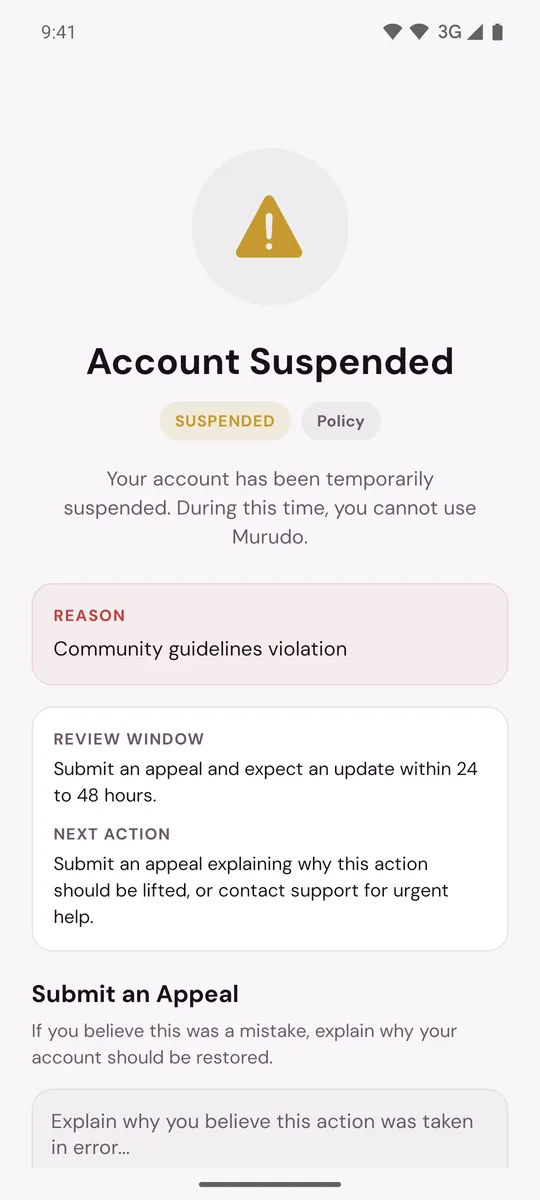
- Open Murudo and log in as usual. You land on Account Suspended or Account Banned.
- Read the Reason box, so your appeal answers it.
Scroll to Submit an Appeal and type your explanation in the box. It must be at least 10 characters and can be up to 2,000.
- Tap Submit Appeal.
You see Appeal Submitted, and the form is replaced by a note that your appeal is under review.
What to write
- What happened, in your own words.
- Why you believe the decision was a mistake.
- Anything our team can check, such as the date or the conversation it was about.
Keep it honest and calm. Do not put a password, a PIN or a code in your appeal.
How long it takes
The screen says appeals are usually reviewed within 24 to 48 hours. That is the usual time, not a promise. While an appeal is under review you cannot send a second one.
See the answer
Open Murudo again and log in.
- If the appeal succeeded, the restriction is lifted and Murudo opens as normal.
- If it did not, you still see the locked screen. Appeal History lists your appeals with their status and any reply from our team. The appeal form comes back, so you can send another appeal if you have something new to add.
On Murudo Web
- Log in at murudo.co/app. You see Account Suspended.
- Type your explanation under Appeal. It must be at least 10 characters and can be up to 2,000.
- Tap Submit Appeal.
If it sent, you see "Your appeal is being reviewed."
If a message appears under the box instead, it tells you what to do:
- "Please write at least 10 characters explaining why your account should be restored." Your explanation is too short. Add to it and tap Submit Appeal again.
- "You already have a pending appeal. Please wait for a response." An appeal from you is already under review, so there is nothing more to send.
- "You have tried too many times. Please wait an hour and try again." Wait an hour, then send your appeal once.
Murudo Web does not show Appeal History. If you log in later and the Appeal box is back while the screen is still locked, your last appeal was not accepted. To read the reply from our team, log in to the Murudo app on an Android phone, or email support@foretellhq.com from the email address on your account and give your username or email.
Other ways to reach us
On the locked screen in the app, Contact Support via Email opens an email to our support team with the subject already filled in. Use it if you need to add details or send a screenshot.
Updated 13 October 2026