
Add, replace or reorder your photos
Add up to 6 photos, replace or remove one, and choose which photo people see first, in the app or on Murudo Web.
- Android app
- Murudo Web
You can have up to 6 photos. The first one is your main photo, the one people see first. To change them, open Profile, Edit Profile, Photos, and tap a photo.
Add a photo
- Open the Profile tab and tap Edit Profile, then Photos.
Tap the empty square with the plus sign.
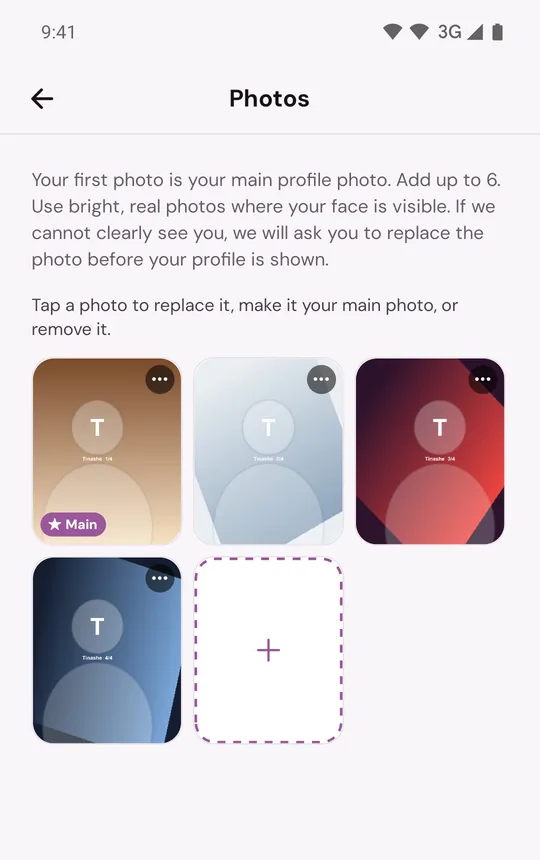
- Choose a photo from your phone. If you have room for more than one, you can choose several at once.
- On Edit Photo, drag the photo to choose what appears in your profile, then tap Done.
- On Review Photo, tap Use. Tap Back to adjust it again.
The photo uploads, and Murudo checks that your face can be seen in it. See What photos are allowed.
Replace, remove or choose your main photo
In Photos, tap the photo.
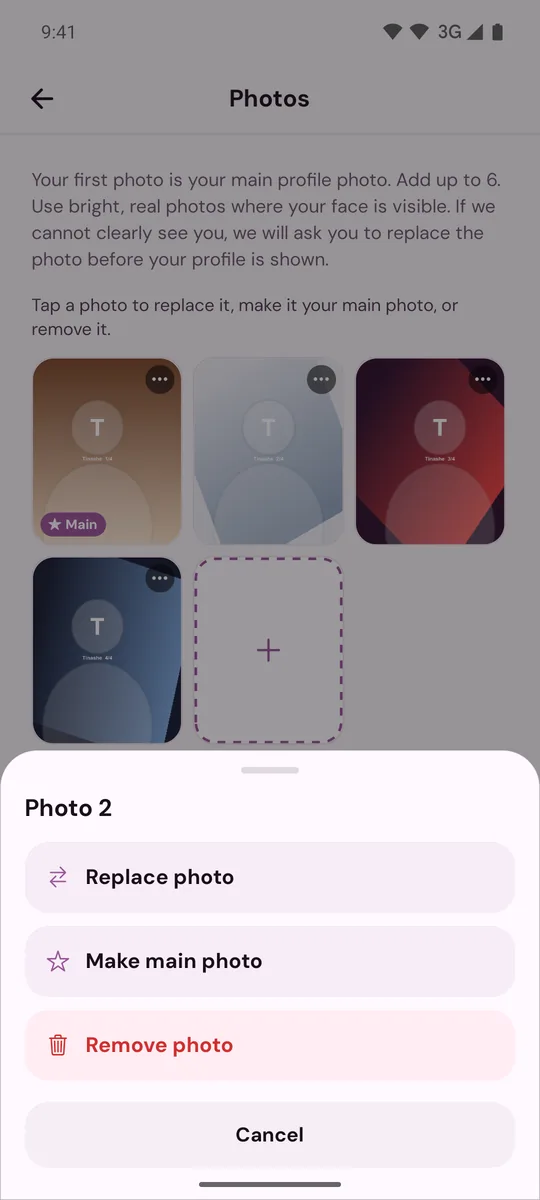
- Tap Replace photo to choose a new photo for that spot, Make main photo to move it to first place, or Remove photo to take it off your profile.
Your main photo carries the Main label.
What happens when you replace a photo
Your current photo stays on your profile until the new one has passed the photo check. While that happens, the photo shows a label:
- Uploading new photo or Checking new photo: wait a moment.
- New photo in review: a person at Murudo needs to look at it. Your current photo stays until the new one is approved.
- New photo not used: it did not pass, so your current photo stays. Choose a bright photo where your face is clearly visible.
Change the order
You cannot drag photos into a new order. Make main photo moves a photo to the front, and the others keep their order behind it.
If something is blocked
- You see Photos are locked while verification is pending: wait for your selfie to be reviewed. See My verification is pending or did not work.
- There is no Remove photo in the menu: it is the last photo your profile can use. See Why can I not remove my last photo?.
- A photo will not upload: see My photos will not upload.
On Murudo Web
Open the Profile tab, tap Edit Profile, then Photos. Tap an empty square to add a photo, or tap a photo for the same three choices. Photo changes are saved straight away, so you do not need to tap Save.
Updated 13 October 2026