
See how others see your profile
Preview Profile shows your photos, bio, prompts and details the way other members see them, without anything you have hidden.
- Android app
- Murudo Web
Tap Preview Profile on the Profile tab to see your profile the way other members see it.
Open the preview in the Android app
- Open the Profile tab.
Tap Preview Profile.
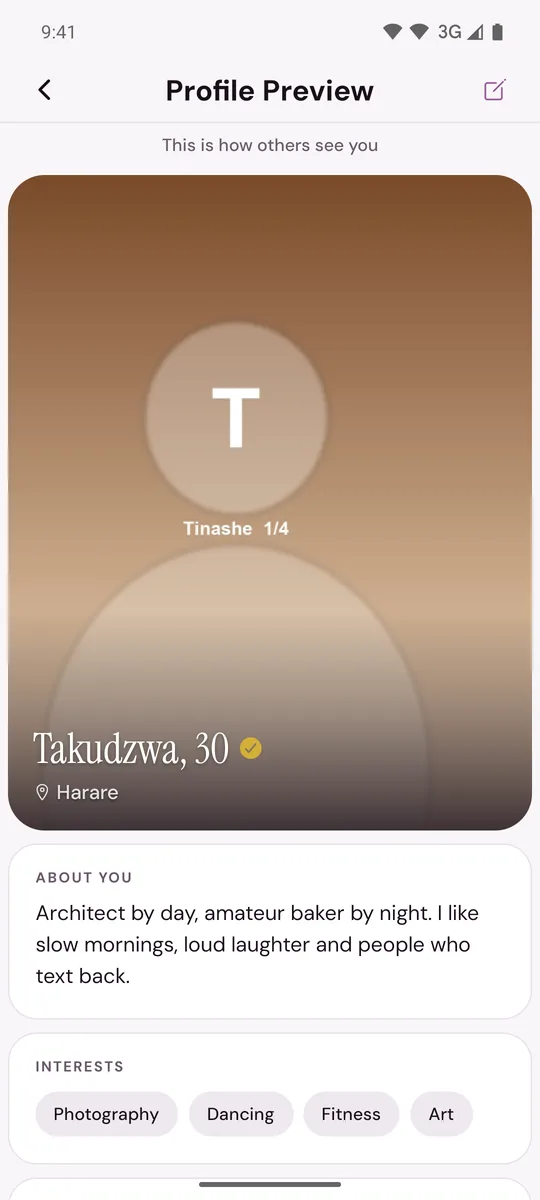
The line This is how others see you sits at the top. Scroll down to see all of it:
- Your main photo with your first name, age, city and the Verified badge if you have one
- Your bio
- Your interests
- Your first prompt
- A details card with your gender, what you are looking for, your height and your other answers
- Your other photos and prompts, one after another
If you added a song, tap the play button at the top to hear it the way others will, even while our team is still checking it. If you turned on Play profile songs, it starts by itself.
To change something, tap the pencil at the top right, or Edit your profile at the bottom.
What the preview leaves out
- Hidden answers. Anything you set to Hidden on profile is missing, because others cannot see it. See Choose which answers show on your profile.
- Your city, if Show my location is off.
- Your school. It does not appear in the preview, but other members see it unless you set it to Hidden on profile.
What you see that others do not
- Empty boxes such as Your second prompt are reminders for you to add one. Other people do not see them.
- A photo you have just added can appear in your preview while it is still being checked. Other people see it only after it passes.
- If you are not verified, a Verify your identity card shows at the bottom. See Get the verified badge.
If you have no photos
The preview opens with No photos uploaded. Your profile will not appear in For You until you add at least one photo. Tap Edit Profile to add one.
On Murudo Web
Open the Profile tab and tap Preview Profile. The Profile Preview screen shows your profile as a Discover card, the way it appears to others.
Updated 25 October 2026