
Get the verified badge
Take one selfie in the app and Murudo compares it with your profile photos. If they match, the Verified badge shows on your profile.
- Android app
- Murudo Web
To get the Verified badge, take one selfie in the app. Murudo compares it with your profile photos. If they match, the badge appears on your profile straight away. It is free.
Before you start
- Have clear photos of your own face on your profile. Three or more helps the automatic check.
- Find even light, and take off sunglasses and hats.
Verify in the Android app
- Open the Profile tab and tap Not verified under your name.
Read the Face Verification screen, then tap I agree to face verification.
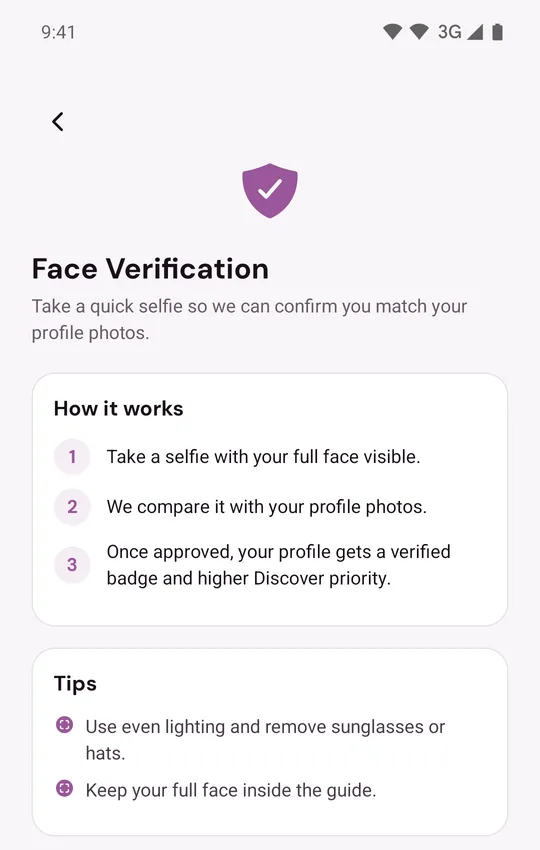
- If your phone asks, allow Murudo to use the camera.
- On Take your selfie, keep your full face inside the guide and tap the round button.
- Wait while you see Submitting your selfie.
You then see one of two results:
- You're Verified: your selfie matched your photos and the badge is active.
- Pending Verification: the automatic check was not sure, so a person at Murudo will review your selfie. See My verification is pending or did not work.
The Get verified prompt
If you have never asked to be verified, a Get verified prompt can appear once on the Likes, Matches or Profile tab. Tap Verify now to start, or Not now to close it. It does not come back, but you can verify from the Profile tab at any time.
What the badge means
Verified shows on your profile wherever other members see it. It tells them that the person in your photos took a selfie that matched. Murudo also gives verified profiles higher priority in For You.
If you see Verify profile to book on a Murudo Meets event, you need the badge before you can book that event.
Keeping the badge
Your badge stays when you add or replace photos. Two things to know:
- A new photo that seems to show a different face is held for a person at Murudo to review. Your badge stays while it waits.
- If our team removes one of your photos, the badge is removed too. Add a clear photo of yourself and verify again.
Your selfie
Other members never see your selfie. It is deleted when your check is decided, and after 30 days at the latest. Murudo keeps a face match record from it, not the photo, to check photos you add later. See What happens to my verification selfie.
On Murudo Web
- Open the Profile tab and tap Verify Identity.
- On Get Verified, tap Take Selfie and allow the camera.
- Tap Capture.
A message tells you either that you are verified and your badge is active, or that your selfie will be reviewed.
Updated 13 October 2026