
Add or change your prompts
Prompts are questions you choose and answer on your profile. Have up to 3, keep at least 1, and change them whenever you like.
- Android app
- Murudo Web
A prompt is a question you pick and answer on your profile, such as My totem is... or A perfect Sunday looks like.... You can have up to 3 and must keep at least 1. Change them in Profile, Edit Profile, Prompts.
Add a prompt
Open the Profile tab and tap Edit Profile, then Prompts.
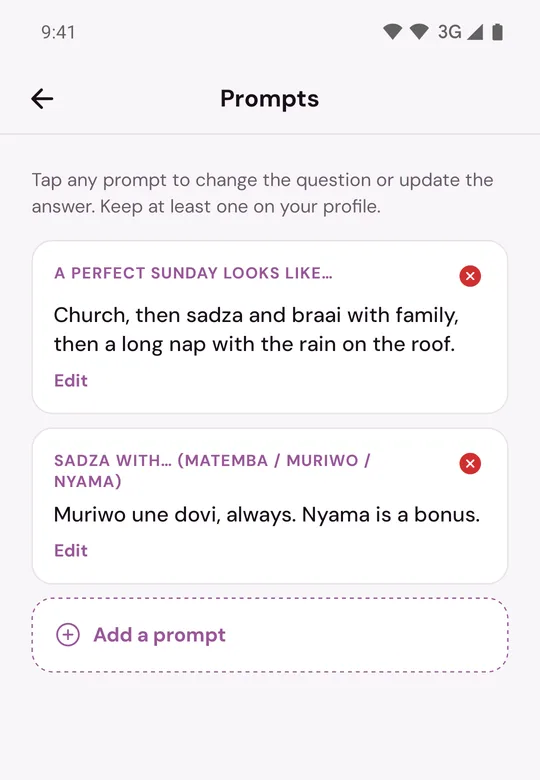
- Tap Add a prompt.
- Tap the question you want to answer.
- Write your answer and tap Save prompt.
Add a prompt disappears once you have 3. A question you have already used is not offered again.
Change a prompt
- In Prompts, tap Edit on the prompt.
- Change your answer. To answer a different question instead, tap Change question and pick one.
- Tap Save prompt.
Remove a prompt
Tap the X on the prompt, or tap Edit and then Remove this prompt.
You cannot remove your only prompt. Your profile needs one before it can be shown, so change the question or the answer instead, or add a second prompt first.
Good to know
- Prompts are saved by themselves after you tap Save prompt.
- Phone numbers are not allowed in an answer. If you type one, you see Phone numbers aren't allowed on profiles. You can share contact details after matching in chat. See Why can I not put my phone number on my profile?.
- Short answers read best: a line or two that gives someone something to reply to. See Tips for a profile that gets replies.
On Murudo Web
- Open the Profile tab and tap Edit Profile, then Prompts.
- Choose a question from the list above each answer box and type your answer, up to 300 characters.
- Tap Add prompt for another one, or Remove to take one away.
- Tap Save at the top.
Updated 13 October 2026