
Unmatch someone
Open the person's profile from the chat, tap Unmatch and confirm. The match and the whole chat are removed for both of you and cannot be brought back.
- Android app
- Murudo Web
To unmatch, open the person's profile from your chat, tap Unmatch at the bottom and confirm. The match ends and the whole chat is deleted for both of you. It cannot be undone.
Unmatch in the Android app
- Open the Matches tab.
- Tap the person's photo in the list. Or open the chat and tap their name at the top. Their profile opens.
At the bottom of the profile, tap Unmatch.
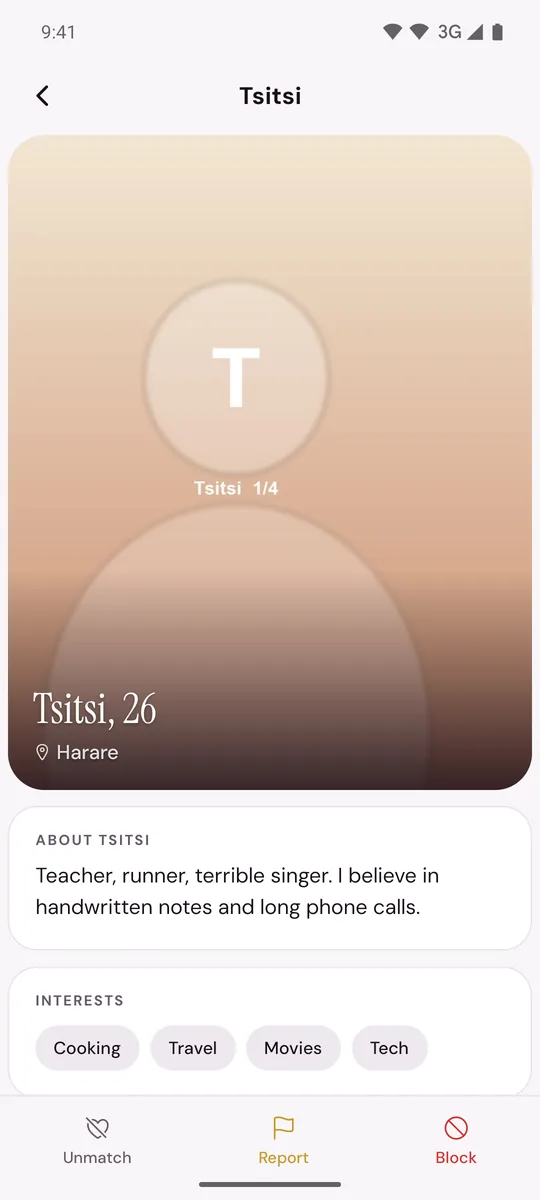
- Tap Unmatch again to confirm.
You go back to Matches and the person is no longer in your list. The chat screen itself has no menu: Unmatch, Report and Block are all on the profile.
What unmatching does
- The match ends and every message and photo in the chat is deleted, for you and for them.
- The person is not sent a notification. The chat simply leaves their Matches.
- The chat cannot be brought back.
- It does not block the person. To make sure they cannot see your profile or contact you again, block them instead.
If the button says Not interested
Some Daily introductions reach your chats before you have answered them. Until you reply, the button on that person's profile says Not interested in place of Unmatch, and the chat has a banner with Not interested and Reply. Tapping Not interested removes the introduction, and the person is not told.
On Murudo Web
- Open Matches and tap the chat.
- Tap the person's name or photo at the top of the chat.
- Tap Unmatch, then Confirm.
Updated 13 October 2026