
Send a photo in a chat
Tap the picture icon beside the message box, choose a photo, check it and tap Send image. Photos only, no videos.
- Android app
- Murudo Web
To send a photo, tap the picture icon beside the message box, choose a photo from your phone, check it and tap Send image. You can only send photos to someone you have matched with.
Send a photo in the Android app
- Open the chat.
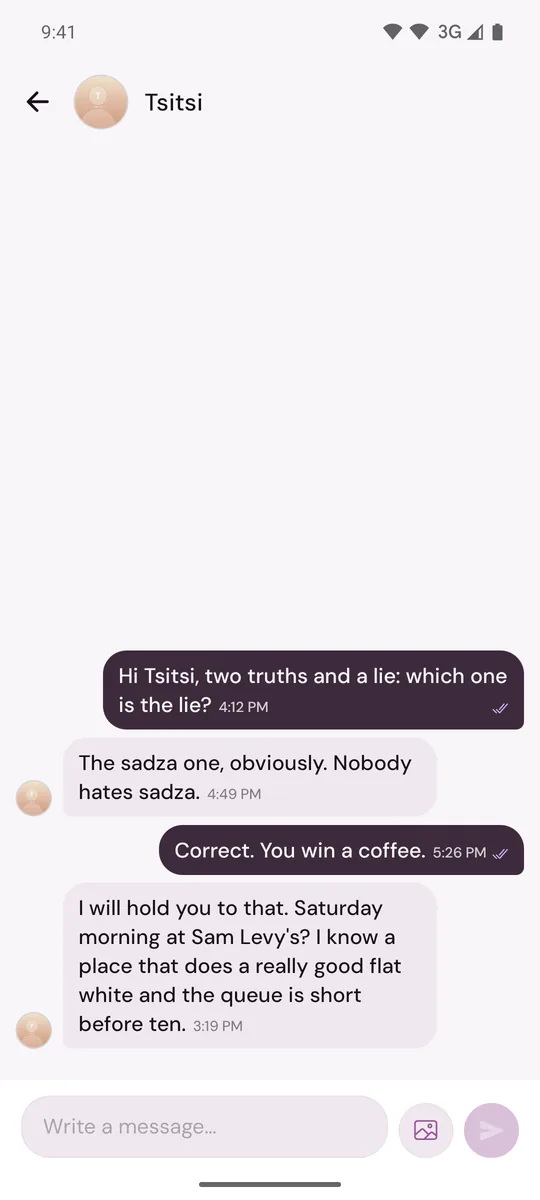
Tap the picture icon between the message box and the send arrow. Your phone's gallery opens.
- Choose one photo.
- On Review image, check that it is the photo you meant to send.
- Tap Send image. Tap Cancel to go back without sending.
The photo shows in the chat with a spinner while it uploads. Tap any photo in a chat to see it full screen.
What you can send
- Photos only. If you pick a video you see Photos only and nothing is sent.
- JPEG, PNG or WEBP pictures of up to 5 MB. The app makes large photos smaller before sending, so most photos from your phone are fine.
- One photo at a time.
If the photo does not send
A photo that failed shows Retry on the picture. Tap it to try again. If it keeps failing, see My messages are not sending.
On Murudo Web
Tap the picture button beside the message box and choose a file. There is no review step on Murudo Web: the photo is sent as soon as you choose it. If the file is the wrong type you see Use JPG, PNG, or WEBP.
Updated 13 October 2026