
Send your first message
Open your match in the Matches tab, write in the message box and tap send. Break the ice suggestions can help you start.
- Android app
- Murudo Web
Open the Matches tab, tap your match, type in the Write a message... box and tap the send arrow. Either of you can write first, and a match does not run out if you take your time.
Send a message in the Android app
- Open the Matches tab and tap the person. Straight after a match in For You, you can tap Send a message instead.
- A new chat shows Say hi to followed by their name. Just above the message box, Break the ice may show up to three suggested openers. They are built from the other person's profile, such as a prompt answer or an interest.
- Tap a suggestion to put it in the message box, then change the words if you like. Or type your own message.
Tap the send arrow.
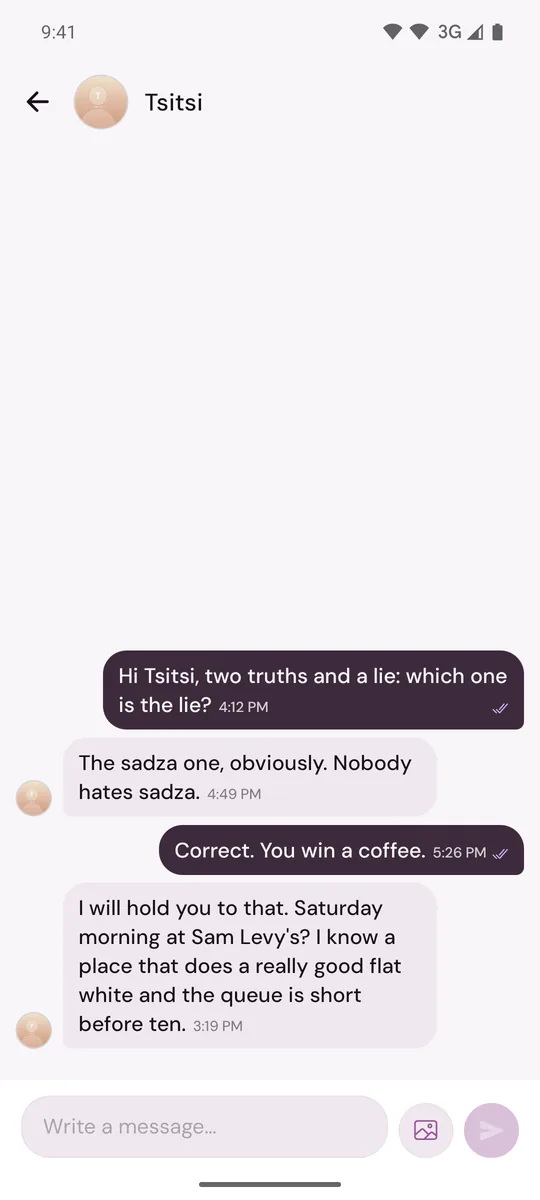
A suggestion is never sent until you tap the send arrow. The suggestions go away as soon as you start typing or the chat has its first message, and not every new chat has them.
Good to know
- A message can be up to 2,000 characters.
- You can send text and photos. There are no voice notes or calls. See Can I send voice notes or make calls?
- In the Android app, a half-written message is kept as a draft if you leave the chat.
- If the match came from a Daily introduction, the message sent with the request is already in the chat.
- A small mark beside your message shows whether it was sent, delivered or read. See What Sent, Delivered and Read mean in a chat.
What to say
- Mention something from their profile and ask a question about it. It is easier to answer than "Hi".
- Be yourself and be kind. The Murudo rules apply in chats too.
- Do not rush to swap numbers or move to another app. See When to share your number or move to another app.
On Murudo Web
Open Matches and tap the person. A new chat shows No messages yet with the suggested openers under it. Type in Type a message..., then tap the send arrow or press Enter.
Updated 13 October 2026