
Reply to, react to or delete a message
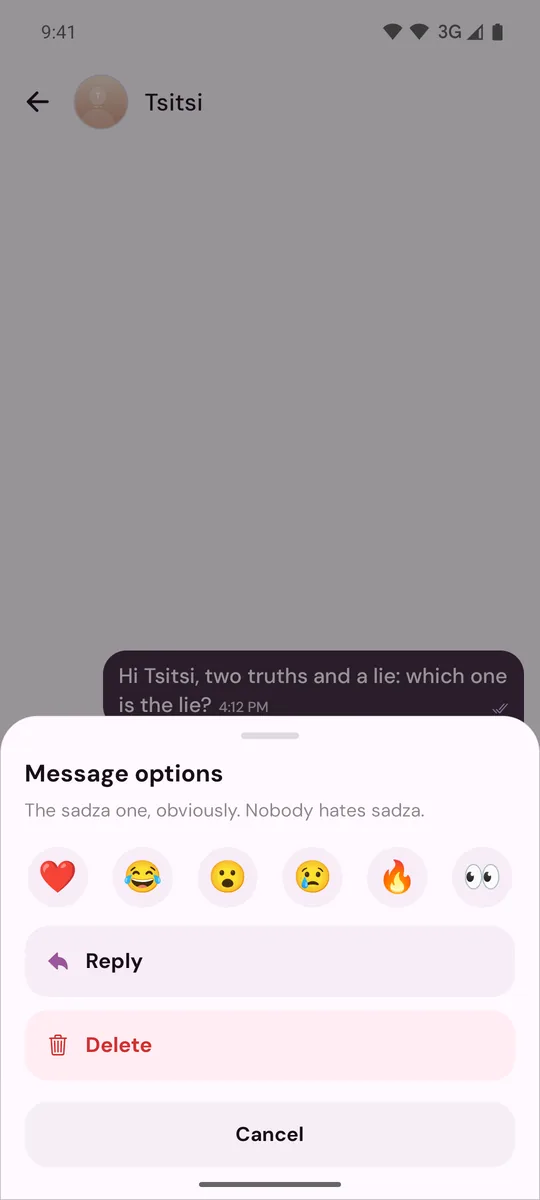
Press and hold a message to open Message options, then react, reply or delete it. Deleting hides the message for you only.
- Android app
- Murudo Web
Press and hold any message in a chat to open Message options. From there you can react to it, reply to it, or delete it from your own view. You cannot edit a message, and you cannot delete it for the other person.
Reply to a message
- Press and hold the message.
- Tap Reply. The message you are answering appears above the message box.
- Type your reply and tap the send arrow.
To change your mind, tap the cross beside the quoted message. Later, tap the quoted part of any reply to jump back to the original message.
React to a message
- Press and hold the message.
- Tap one of the six reactions: heart, laughing face, surprised face, crying face, fire or eyes.
The reaction shows under the message for both of you. You can have one reaction on each message. To remove yours, tap it under the message. To change it, open Message options again and choose another.
Delete a message
- Press and hold the message.
- Tap Delete.
- On Delete Message, tap Delete.
This hides the message from your account, on this phone and on your other devices. The other person still has it. It works on your own messages and on theirs.
On Murudo Web
Press and hold a message, or use the small arrow that appears on it, to open the same choices: the six reactions, Reply and Delete for me. On a computer, point at the message to show the arrow, or right-click the message. On Murudo Web the message leaves your view as soon as you tap Delete for me, with no second question.
Updated 13 October 2026