
The Inbox: messages from Murudo
The Inbox on your Profile tab holds messages from Murudo, such as updates, offers, payment receipts and replies from support. It is also where you write to support.
- Android app
- Murudo Web
The Inbox is where Murudo writes to you: updates about the app, offers, receipts and notes about your payments, and replies from our support team. It is separate from your chats with matches. Open it from the Profile tab by tapping Inbox.
Read a message
- Open the Profile tab. A number on the tab means you have unread Inbox messages.
Tap Inbox.
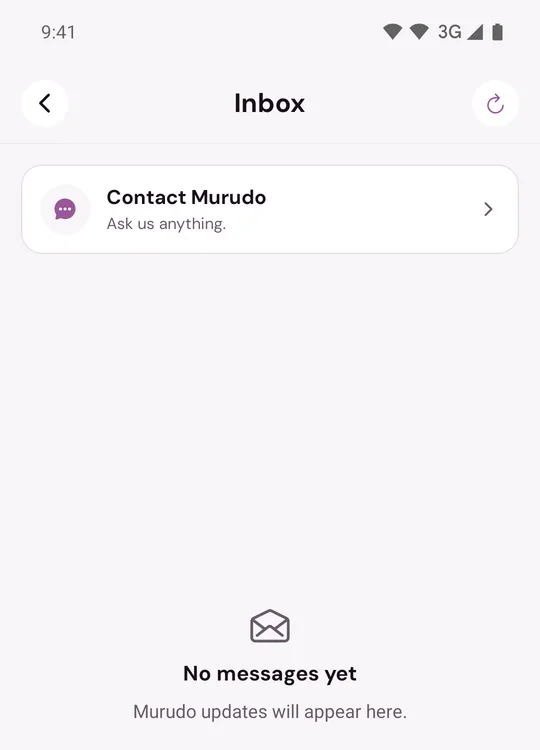
- Tap a message to open it. Unread messages have a dot beside the subject.
To check for new messages, pull the list down or tap the refresh icon at the top right. An empty Inbox says No messages yet.
Two kinds of message
- Conversations with support have a speech bubble icon. You can reply to these and attach a screenshot.
- Announcements have a megaphone icon. They cannot be answered, so they have no message box. If you see an offer in one, it has its own button.
- Messages about your own payments also have a megaphone icon: a Payment received receipt, a note when an earlier payment came through late, and a message when a payment did not go through, with a Try again button. See My payment is not going through.
- Some messages have a button under them that takes you to the right place, such as Add a new song when a song was not approved. See Add a song to your profile.
Reply to support
- Open the conversation.
- Type in the Reply box. To add a screenshot, tap the picture icon and choose it. Photo ready to send appears above the box.
- Tap the send arrow.
When a conversation is finished it shows This thread is closed. and the message box goes away. To carry on, start a new message.
Start a new message to support
In the Inbox, tap Contact Murudo.
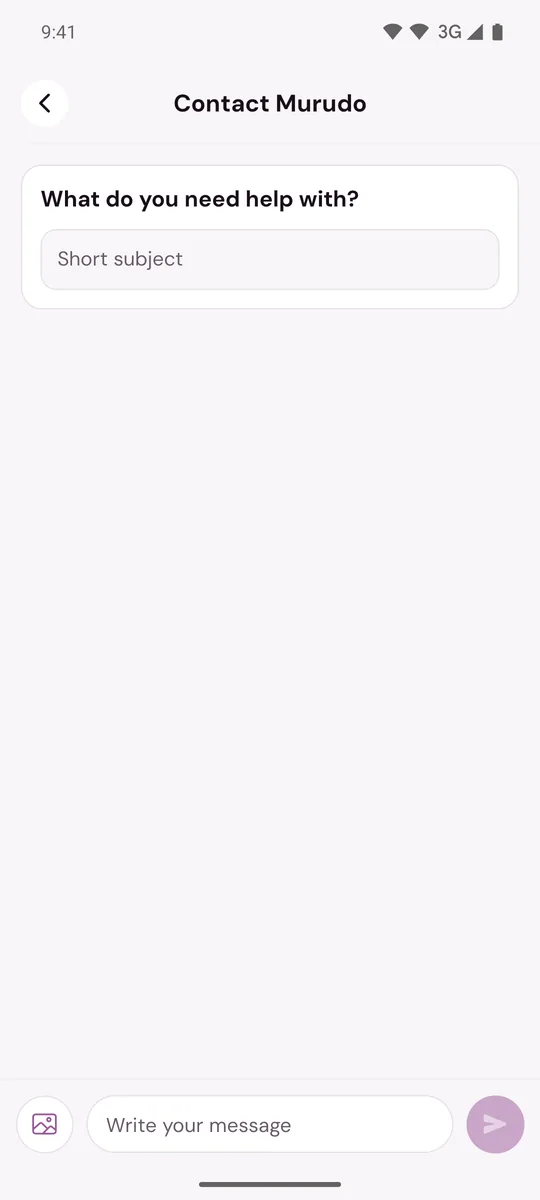
- Under What do you need help with?, type a short subject.
- Write your message, add a screenshot if it helps, and tap the send arrow.
Replies arrive in the same conversation, and you get a notification if notifications are on. See Contact Murudo support for what to include.
On Murudo Web
Open the Profile tab and tap Inbox. Contact Murudo is at the top of the list. Use Attach photo to add a screenshot and Send to send your message.
Updated 24 October 2026