
Lock Murudo with your fingerprint or face
Turn on Biometric unlock on app open so the Android app asks for your fingerprint, face or screen lock before it opens.
- Android app
Switch on Biometric unlock on app open and Murudo asks for your fingerprint, face or screen lock before it opens. The lock is in the Android app only. Murudo Web does not have one.
Turn the lock on
- Open the Profile tab and tap Settings.
- Tap Privacy and security.
- Scroll down to Security.
Switch on Biometric unlock on app open.
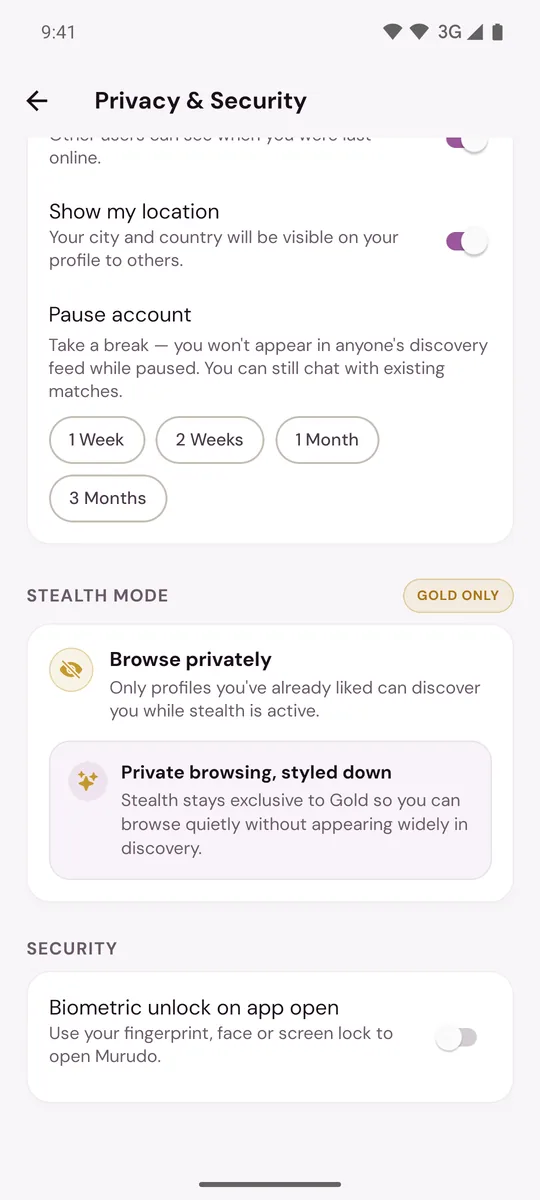
- Your phone asks you to confirm with your fingerprint, face or screen lock. Once you do, the lock is on.
If you see Biometric unlock unavailable, your phone has no fingerprint or face set up, or does not support them. Add one in your phone's own security settings, then try again.
To turn the lock off, switch Biometric unlock on app open off in the same place.
When Murudo locks
- Each time you open Murudo after it was fully closed.
- When you come back to Murudo after it has been in the background for more than 5 minutes. This includes opening it from a notification.
A quick visit to another app and back does not lock it.
The "Murudo is locked" screen
If you cancel the prompt, or your phone does not recognise you, you see Murudo is locked with two buttons:
- Unlock: try again. You can use your phone's screen lock (PIN, pattern or password) instead of your fingerprint or face.
- Log out: signs you out on this phone. You can then log in again the usual way and switch the lock off if you no longer want it.
Good to know
- The lock belongs to this phone, not to your account. Turn it on again on a new phone or after reinstalling.
- It uses your phone's own fingerprint, face and screen lock. Anyone who can unlock your phone can unlock Murudo.
- If you remove every fingerprint and face from your phone, Murudo opens without asking until you add one again.
- To also change how the app looks on your home screen, see Change the Murudo icon on your phone.
Updated 13 October 2026