
Change the Murudo icon on your phone
If you see App icon in Privacy and security, you can make Murudo look like a calculator, notes or another plain app on your phone.
- Android app
If your Murudo has an App icon section, you can swap the Murudo icon, and the name under it, for a plain one such as Calculator or Notes. It is in the Android app only, and only in newer versions.
Change the icon
- Open the Profile tab and tap Settings.
- Tap Privacy and security.
Scroll to the bottom. App icon is the section after Security.
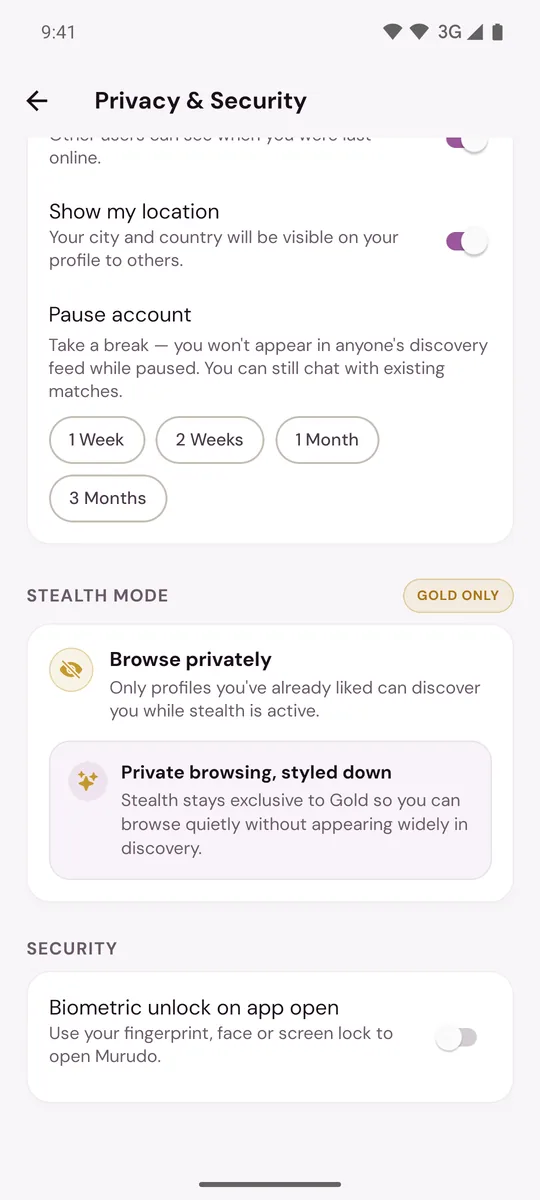
- Tap the icon you want: Murudo, Calculator, Notes, Calendar, Weather, Clock or Files.
- Tap Change icon to confirm.
Murudo may close when the icon changes. Open it again from the icon with the new name. If the old icon was on your home screen, it may be gone: find the new one in your app list and add it to your home screen again.
To go back, do the same and choose Murudo.
If you do not see App icon
Your installed version does not include it. Small updates that arrive by themselves cannot add it: you need a full new version from Google Play or from murudo.co. See Update Murudo to the latest version.
What still says Murudo
The new icon only changes how the app looks on your home screen and in your app list. The name Murudo still shows in:
- Notifications.
- Your phone's Settings, in the list of apps.
- Google Play.
To keep notifications private, turn them off. Tap Open notification settings under the icons, or see Turn Murudo notifications on or off.
Good to know
- Nothing changes inside the app or on your profile. Other members cannot tell which icon you use.
- The icon is set on this phone only. After reinstalling, the app has the Murudo icon again.
- If you see App icon not changed, try again.
- For a stronger lock, also turn on the app lock, so the app asks for your fingerprint or face when it opens.
Updated 13 October 2026