
Turn dark mode on or off
Switch Murudo between Light, Dark and System in Settings, in the Android app and on Murudo Web.
- Android app
- Murudo Web
Open the Profile tab, tap Settings, and choose Light, Dark or System under Appearance. The screen changes as soon as you tap.
In the Android app
- Open the Profile tab and tap Settings.
Under Appearance, at the top, tap Light, Dark or System.
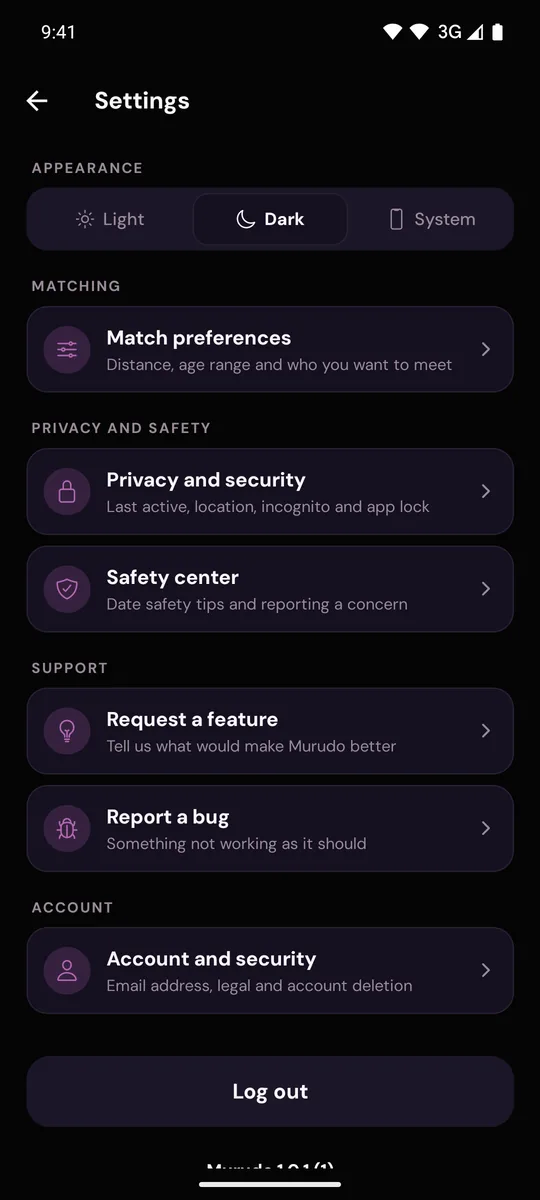
What each choice does:
- Light: a light background. This is how the app starts.
- Dark: a near-black background that is easier on the eyes at night.
- System: follows your phone. When your phone's own dark theme is on, Murudo is dark too.
Good to know
- Your choice is kept on this phone. It is not part of your account, so choose again on a new phone, after reinstalling, or on Murudo Web.
- Logging out puts the app back to Light. Choose Dark again after you log in.
- The sign-in screens and the profile set-up steps are always light, whatever you chose.
- Dark mode does not change anything other people see.
On Murudo Web
- Open Profile, then Settings.
- Tap Appearance.
- Under Theme, tap Light, Dark or System.
Murudo Web starts on System, so it already follows your phone or computer. Your choice is saved in that browser only.
If the screen still looks wrong
If you chose System and Murudo does not match your phone, check your phone's own display settings: a scheduled dark theme or a battery saver can switch it for you. To stop Murudo changing by itself, choose Light or Dark instead of System.
Updated 13 October 2026