
Find your Murudo version
Where to read the version line in the Android app and on Murudo Web, and what its numbers mean when support asks for them.
- Android app
- Murudo Web
Your version is the last line on the Settings screen. Open the Profile tab, tap Settings and scroll to the bottom, below Log out.
In the Android app
- Open the Profile tab and tap Settings.
Scroll to the very bottom.
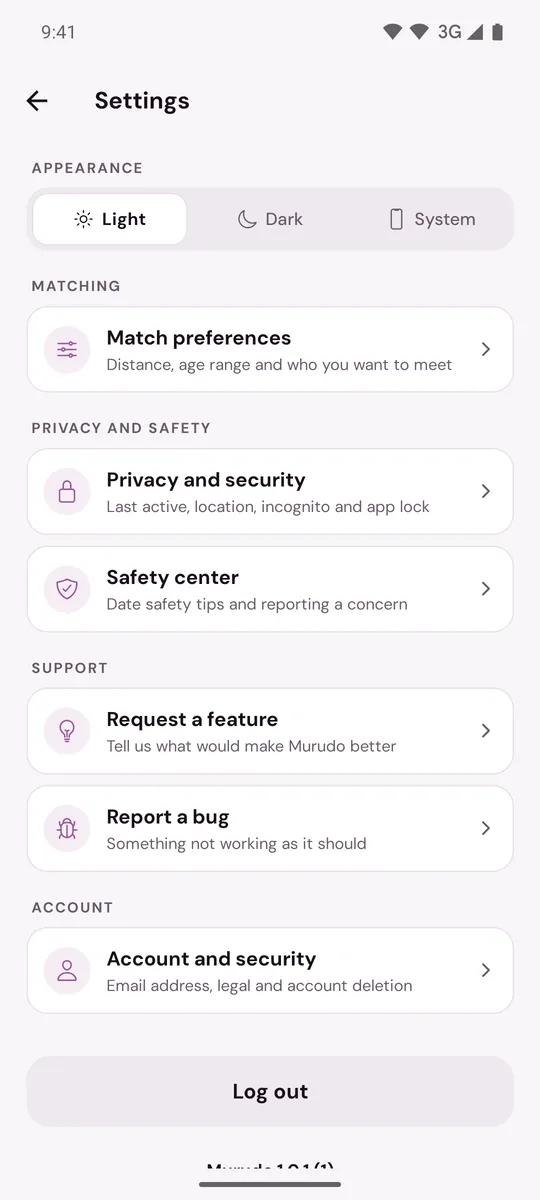
The version is the text under Log out.
You see one or two lines:
- Murudo 1.0.1 (64): the version you installed. The first part is the version and the number in brackets is the build. A higher build is newer. These numbers are an example and yours may differ.
- Updated 13 Oct 2026 and a short code: this second line only shows when a small update that arrived by itself is running. The date is when that update was made. If there is no second line, you are running the app exactly as it was installed.
To copy the text, press and hold it. Or take a screenshot of the bottom of Settings.
On Murudo Web
- Open Profile, then Settings.
- Look under the list of rows.
The line reads Murudo Web followed by a version that looks like a date, for example 2026.10.13.
Why support asks for it
The version tells the team which fixes you already have, so they do not ask you to try something that cannot work on your version. When you report a problem, send:
- Every line you see at the bottom of Settings.
- Your phone model.
- Whether you got the app from Google Play or from murudo.co.
The version line does not say which of the two Android apps you have. To check, see the last section of Update Murudo to the latest version.
If your version is old
See Update Murudo to the latest version. Murudo does not tell you when a newer version is out, so it is worth checking before you report a problem.
Updated 13 October 2026